

描述
Bubuku Media Library helps content and marketing teams audit, monitor and optimize images in WordPress. Track file sizes, identify missing alt text, export reports, receive email summaries and connect AI assistants through MCP.
New in version 1.3.0: Bubuku Media Library includes an MCP Server that allows compatible AI assistants and developer tools to interact with your WordPress Media Library through a secure endpoint with role-based permissions.
You can:
- Sort the Media Library by file size to easily identify large files.
- Filter images that don’t have alternative text (alt text).
- Use size-based filters (for example: optimal size, medium size, large size) to prioritize which images to optimize first.
- Run a Bulk Action in the Media Library to calculate file sizes for existing uploads.
- Export CSV reports including file size, format (MIME type), URL, alt text, image date, post title and post URL — ideal for audits or sharing with your team.
- See a summary of your Media Library in a dashboard widget, including how many images are heavy or missing alt text.
- Configure weekly or monthly email reports so you can monitor the optimization status of your images without logging into WordPress.
- Connect MCP-compatible AI assistants to your Media Library using role-based permissions and configurable abilities.
More information (in Spanish) about how the plugin works: How to know if we have to reduce weight to the image and Alt SEO attribute
AI & MCP Integration
Bubuku Media Library includes a built-in MCP Server that allows compatible AI assistants and development tools to securely interact with your WordPress Media Library.
Available MCP abilities include:
- Listing media library attachments.
- Reviewing image metadata and alt text coverage.
- Exporting media audits to CSV.
- Accessing media library summary metrics.
- Triggering reports and diagnostics.
- Managing media accessibility workflows.
Each ability can be enabled or disabled individually and restricted to a minimum WordPress role. This allows you to safely connect AI assistants like Claude Desktop, Codex, Cursor and other MCP-compatible clients to audit images, review missing alt text, generate reports and automate media management workflows, while keeping permissions under your control.
Typical use cases include:
- Finding images without alt text.
- Exporting media audits for content reviews.
- Checking image size distribution.
- Generating accessibility reports.
- Integrating WordPress media workflows with AI assistants.
- Automating repetitive media library review tasks.
Quick Start
-
From your server (SSH), move the plugin folder to the plugins directory:
wp-content/plugins/bubuku-media-library/
-
Activate the plugin via the WordPress admin or using WP-CLI:
wp plugin activate bubuku-media-library
-
(Optional) Run the bulk action in Media > Library to calculate file sizes for existing images.
Evaluate results
Recommended Tools
– Lighthouse (in Chrome DevTools) — Analyze image weight and format, as well as the use of alternative text (ALT).
– WebPageTest — Check how images affect real-world load times.
– Squoosh — Compare visual quality and file size savings when optimizing images.
– WAVE Accessibility Tool — Verify whether images are missing ALT attributes or if the alternative texts are descriptive.
Evaluation Guidelines
– Identify images without ALT text or with excessive file size before running external tests.
– After replacing large images or adding ALT text, repeat your evaluations to confirm improvements.
– Evaluate both new and existing content — not only the most recent uploads.
– Define an internal size limit (for example, 200 KB per image) and monitor it regularly.
– Keep in mind that accessibility also affects SEO and overall user experience.
SUPPORT
Need help or have a suggestion?
Please use the official WordPress.org Support Forum for any issues related to the plugin.
Official Website
For additional information or to get in touch with the development team, please visit our official website.
Like the plugin?
Please leave a 5-star review and help others discover Bubuku Media Library.
ABOUT BUBUKU_CODE
We develop custom solutions for WordPress focused on performance, accessibility, and maintainable code. Our work includes plugins, themes, and integrations designed to improve the daily workflow of marketing and content teams.
屏幕截图

The column where we show the image size information and if it has alt text. We can also sort by size from largest to smallest. 
Filter to better identify the images that have the alt text 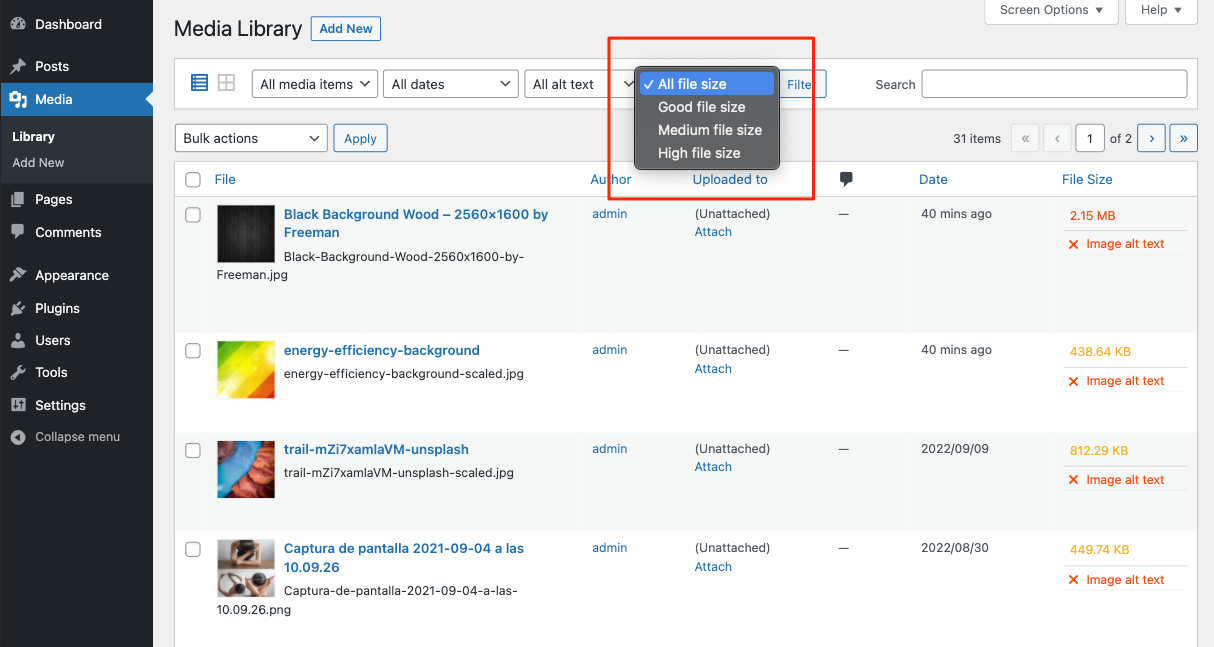
Filter to identify images with larger or smaller sizes. 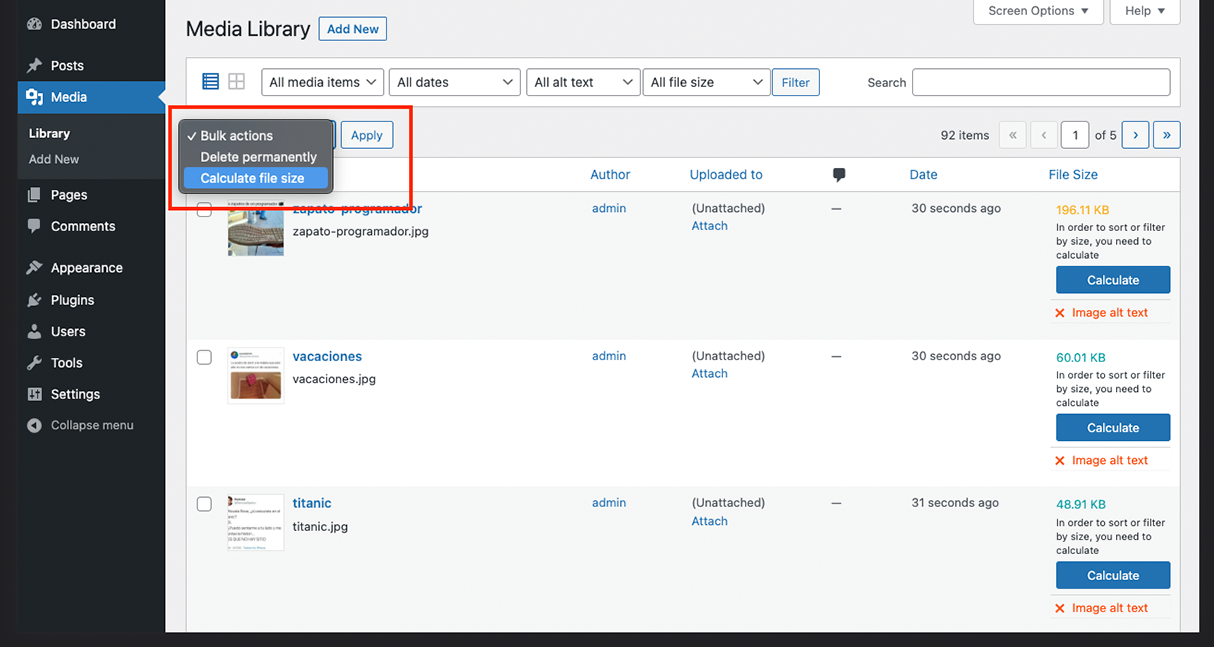
Bulk Action to calculate file size. 
Plugin settings page 
Connect WordPress to Claude, Codex, Cursor and other MCP-compatible AI assistants while controlling permissions for every available media management tool. 
Weekly report that are sent by email with the optimization status of the images and alternative text. 
Dashboard widget where the media library summary is displayed.
安装
- Unzip the plugin ZIP file on your computer.
- Copy or move the resulting folder to the “wp-content/plugins/” directory of your WordPress installation.
- Log in to the WordPress admin area and navigate to the “Plugins” screen.
- Locate “Bubuku Media Library” in the plugins list and click “Activate” to enable the plugin.
- (Optional) Go to the plugin settings page to configure report options (weekly, monthly or disabled) and other filters.
- Ensure your installation meets the requirements listed in the plugin header (WordPress and PHP versions) before using it in production.
常见问题
-
What does each color mean?
-
Green = <= 100KB (good), Orange = 100KB – 500KB (medium), Red = >= 500KB (poor).
-
How can I recalculate sizes after optimizing images?
-
Use the “Calculate file size” Bulk Action in the Media Library, or click the recalculate button on individual attachments to update the stored file size.
-
Can I disable the weekly reports?
-
Yes — go to the plugin settings page and select the report frequency: Weekly, Monthly or Disabled.
-
Are generated reports compatible with my language?
-
The plugin uses WordPress localization files. If your language is available under the
languages/directory, the texts will be displayed in that language when WordPress is configured accordingly. -
How can I filter the Media Library by file size?
-
Use the size filter provided by the plugin in Media Library to select a predefined range or enter custom limits. You can also sort the size column to quickly find the largest or smallest files.
-
How can I find images that don’t have alt text?
-
Use the “Alt Text” filter in the Media Library to show items missing alternative text, or sort the Alt column to group empty values together for quick review.
-
How do I export the report to CSV?
-
Use the Export / Reports functionality in the plugin and click the “Export CSV” button. The generated CSV contains the following columns: ID, Image Name, Image URL, File Size, Format (MIME type), Alt Text, Image Date (Y-m-d H:i:s), Post Title, Post URL, Post SEO Title, Post SEO Description.
The SEO columns are populated automatically when one of the following SEO plugins is active: Yoast SEO, Rank Math, All in One SEO (AIOSEO), SEOPress or The SEO Framework. The exported value is the raw text configured by the user (variables like %%title%% are not resolved).
-
Can you show an example CSV row?
-
Example (CSV columns separated by commas):
123,"my-image.jpg","https://example.com/wp-content/uploads/2024/01/my-image.jpg","256.34 KB","image/jpeg","An example alt text","2024-01-10 12:34:56","Example Post","https://example.com/example-post/","Example Post – My Site","Short description of the example post." -
Which encoding is used and how to open the file in Excel?
-
The plugin adds a UTF-8 BOM to the CSV for better compatibility with Excel. If Excel shows garbled characters, import the CSV using Excel’s Data From Text/CSV and choose UTF-8 encoding.
-
Are there any permission or security checks for export?
-
Yes — the export checks that the current user has the
upload_filescapability and verifies a nonce (bml_filter_nonce) to prevent CSRF. If the checks fail, the export is blocked. -
What is the MCP Server?
-
The MCP (Model Context Protocol) Server allows compatible AI assistants and developer tools to securely access selected media library capabilities through a single endpoint.
-
Which AI tools are compatible?
-
Any client that supports the Model Context Protocol (MCP), including Claude Desktop, Cursor, Codex and other compatible applications.
-
Can I control what AI assistants can access?
-
Yes. Each MCP ability can be enabled or disabled individually and you can define the minimum WordPress role required to execute it. This allows you to safely connect AI assistants while keeping permissions under your control.
评价


贡献者及开发者


更新日志
1.3.1
- CSV export: added new “Caption” column (image caption/legend) placed after “Alt Text”. Import ignores the column without changes.
- Abilities:
list-attachmentsnow includes thecaptionfield in every attachment result.
1.3.0
- Unified plugin configuration in one admin screen with internal tabs.
- Added a new “Tools & Abilities” tab in the main settings page.
- Migrated per-tool abilities management to the React admin app.
- Added REST endpoints to load and save per-tool enabled/role settings.
- Fixed a REST authorization bypass in the notification settings endpoint by enforcing capability and nonce checks before updates.
- Refreshed AI Abilities panel styles to match the current admin UI system.
1.2.2
- CSV export: added two new columns, Post SEO Title and Post SEO Description, extracted from the active SEO plugin on the site.
- Supported SEO plugins: Yoast SEO, Rank Math, All in One SEO (AIOSEO), SEOPress, The SEO Framework. If no supported SEO plugin is active, both columns are exported empty.
- Redesigned email report layout and styles.
- Added token-based URL to preview the email report in the browser.
- Added manual report send field in settings: send the report to custom email addresses on demand.
- Minor support and functionality improvements.
- Improved performance.
1.2.1
- Fix: Correctly load assets (CSS/JS).
1.2.0
- Moved the export block before the import block.
- Fix: calculate button in the Media Library.
- Fix: corrected calculation for images with and without ALT text.
- Updated screenshots.
1.1.9
- Added media summary dashboard panel showing image size distribution and ALT accessibility stats.
- Improved summary performance by using a persisted snapshot with async refresh and cache invalidation on media updates.
1.1.8
- Added CSV import functionality for image ALT texts.
- Moved plugin page from Settings to Tools menu.
- UI/UX improvements on the plugin administration page.
1.1.7
- Updated banners and icons for WordPress.
1.1.6
- Documentation: small README update.
1.1.5
- Added CSV export functionality.
1.1.4
- Replaced number_format_i18n() with an integer return in calculate_img_alt_empty for a plain alt text count.
1.1.3
- Improve performance and simplify SQL queries.
- Implemented caching for the calculated number of images by size and those lacking alt attributes.
1.1.2
- Added security and performance improvements
- Fix some PHP errors.
- Compatibility: WordPress 6.8 – WordPress 6.8.1.
1.1.1
- fix widget texts
- Compatibility: WordPress 6.5 – WordPress 6.5.3.
1.1.0
- Add dashboard widget to display media library summary
- Remove friendly url functionality in image file names. Gave problems with image optimization plugins.
1.0.9
- Remove “Weekly” in informative texts.
- Fix image URL in metadata[‘file’].
1.0.8
- Default media library reporting was disabled, and modifications were made to the email report texts.
- Configuration options for sending the report: weekly, monthly or deactivated.
- Fix error when renaming images to lowercase.
1.0.7
- Make filename URLs and thumbnail URLs friendly.
- Updates image size value when edited.
- Add button on image to recalculate size.
- Fix API error when WordPress is configured to end with a slash.
- Compatibility: WordPress 6.1 – WordPress 6.4.2.
1.0.6
- Compatibility: WordPress 6.1 – WordPress 6.3.
1.0.5
- Add weekly reports that are sent by email with the optimization status of the images and alternative text.
- Add plugin settings page.
1.0.4
- Compatibility: WordPress 6.1 – WordPress 6.2.
- Fix some PHP errors.
- Add WordPress JavaScript dependencies.
1.0.3
- Add a Bulk Action to calculate file size in WordPress admin.
- Improvements in measurement ranges.
- fix: Internationalization Issues.
1.0.2
- Rename variables.
- Correctly filter by file size.
- Styling WordPress Button.
1.0.1
- Add calculate message to sort and filter.
- Add ‘This media is not supported’ message in the file size column.
1.0.0
- Initial release.