描述
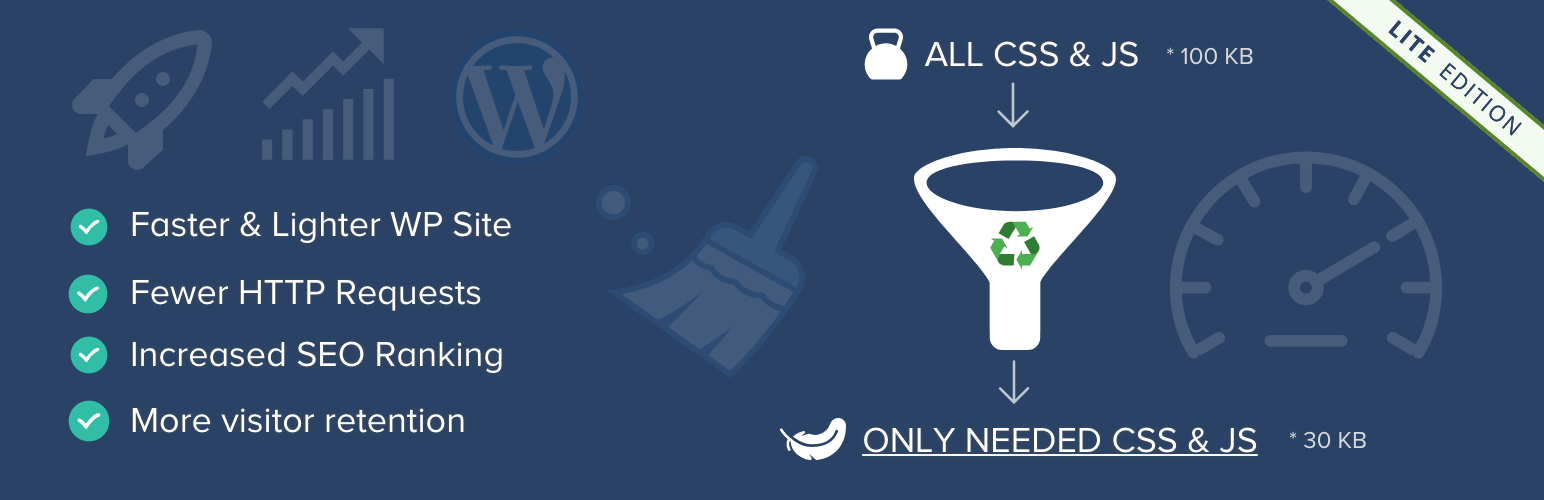
Most WordPress sites load unnecessary CSS and JavaScript files, making pages slower than they should be. Strip the “fat” first and get a faster website!
Faster page load = Happier Visitors = More Conversions = More Revenue 🙂
When using a theme and multiple plugins, many styles and scripts are loaded on every page, even when they are not needed. Preventing unnecessary assets from loading makes your website faster and the HTML output cleaner.
For example, a contact form plugin may load its CSS and JavaScript files on every page, even if the form is only used on the contact page.
Asset CleanUp scans your page and shows all loaded assets. You can then unload the ones that are not needed, reducing page bloat and improving load speed.
The plugin works best alongside a caching plugin or CDN (e.g. Cloudflare) for maximum performance.
Main plugin’s benefits include
- Unload (prevent from loading) unnecessary CSS & JavaScript files and decrease HTTP requests
- Eliminate render-blocking resources for faster page load
- Improve Core Web Vitals and performance scores (PageSpeed, GTmetrix, Pingdom)
- Combine and minify remaining CSS & JavaScript files (including inline code)
- Defer JavaScript execution to improve loading speed
- Inline critical CSS for faster rendering
- Preload important assets such as CSS, JavaScript, local fonts & Google Fonts
- Remove unused features such as Emojis, Dashicons (for guests) and Comment Reply
- Disable RSS feeds if not needed
- Reduce overall HTML size (especially effective with GZIP compression enabled)
- Prevent potential conflicts between plugins and themes
- Make source code cleaner and easier to debug
Google Fonts Optimization / Removal
- Reduce the number of Google Font requests by combining them into fewer requests (faster loading)
- Load Google Fonts asynchronously or via preload to avoid render-blocking issues
- Preload Google Font files for improved performance
- Apply font-display to ensure text remains visible while fonts are loading
- Enable preconnect to speed up font delivery
- Option to completely remove Google Fonts (including all related requests)
Local Fonts Optimization
- Preload local font files for faster rendering
- Apply font-display to improve text visibility during font loading (important for PageSpeed)
Critical CSS
- Add your own critical CSS to improve above-the-fold loading speed
- Supports homepage, posts, pages, taxonomies, archives, search and 404 pages
- Can be managed directly from the Dashboard or via code / Read More
Clean up unnecessary code from HEAD & BODY
- Remove unused WordPress tags (RSD, REST API, shortlinks, generator meta, etc.)
- Disable RSS feed links if not needed
- Remove oEmbed scripts if you don’t use embedded content
- Strip unnecessary HTML comments (with exceptions support)
Each option can be enabled or disabled individually, giving you full control over how your site is optimized. Clear instructions are available directly in the plugin’s settings.
Disable partially or completely XML-RPC protocol
- Disable XML-RPC if not needed (improves security and reduces unnecessary access)
- Keep it enabled if you rely on external apps or services
Fully compatible with WordPress Multisite networks
Asset CleanUp Pro
This is the lite version of Asset CleanUp Pro, which offers advanced control over how CSS & JavaScript files are loaded across your entire website.
Learn more about the Pro version
NOTES
If something is not working as expected or you have any suggestions, feel free to open a thread in the support forum, and I’ll be happy to help.
If you enjoy using the plugin, a review is always appreciated.
GO PRO
- Unlock advanced control over how CSS & JavaScript files load across your entire website
- Unload (prevent from loading) CSS/JS files across all pages (including taxonomies, archives, search and 404 pages)
- Disable entire plugins in the frontend or Dashboard to reduce load time and avoid conflicts
-
Load assets conditionally based on screen size (e.g. skip unnecessary files on mobile)
-
Defer or async JavaScript files for faster page rendering
- Move CSS & JS between HEAD and BODY to reduce render-blocking resources
-
Inline JavaScript when needed for better performance
-
Get faster updates, early access to new features and premium support
Ready to take full control of your website’s performance?
Upgrade to Asset CleanUp Pro
屏幕截图
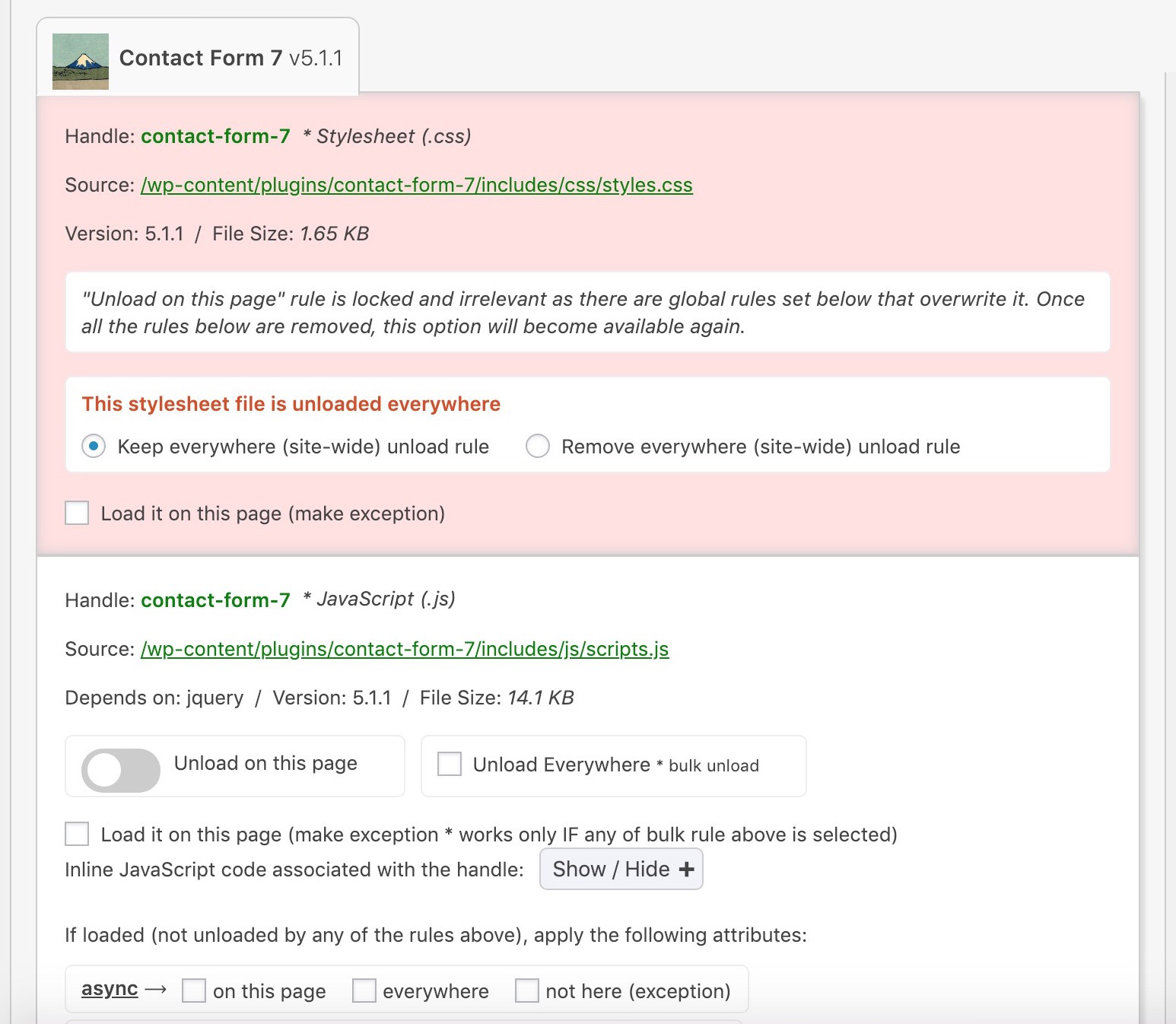
When editing a page, a meta box will load with the list of loaded CSS & JS files from the active theme & plugins 
Plugin Usage Preferences (From “Settings”) 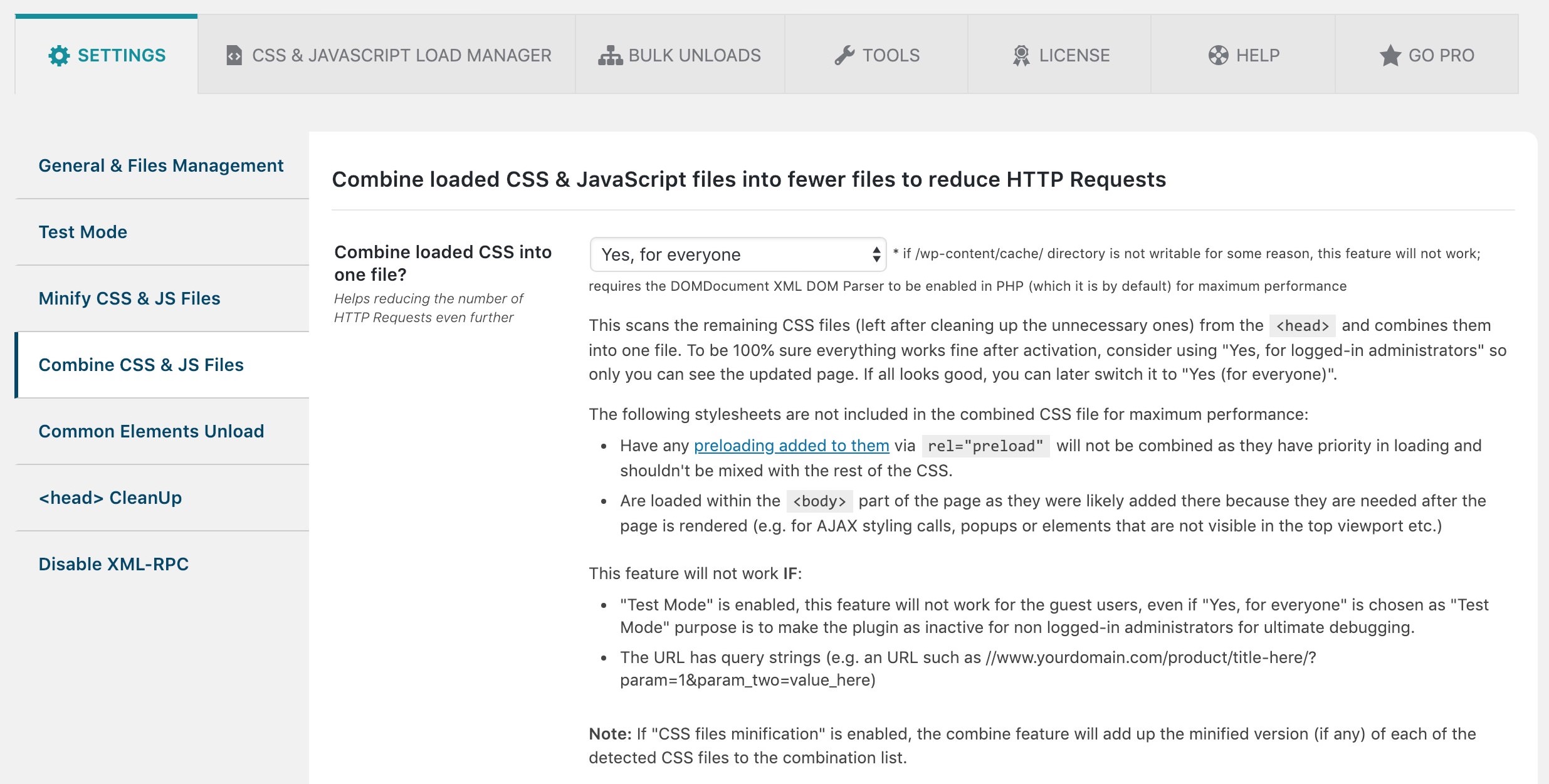
Combine CSS & JS files option 
Homepage CSS & JS Management (List sorted by location)
安装
- If you’re planning to use the Lite version of the plugin:
- Go to “Plugins” -> “Add New” -> “Upload Plugin” and attach the downloaded ZIP archive from the plugin’s page or use the “Search plugins…” form on the right side and look for “asset cleanup”
- Install and activate the plugin (if server’s PHP version is below 5.6, it will show you an error and activation will not be made).
- Edit any Page / Post / Custom Post Type and you will see a meta box called “Asset CleanUp” which will load the list of all the loaded .CSS and .JS files. Alternatively, you will be able to manage the assets list in the front-end view as well (at the bottom of the pages) if you’ve enabled “Manage in the Front-end?” in plugin’s settings page.
- To unload the assets for the home page, go to “Asset CleanUp” menu on the left panel of the Dashboard and click on “CSS & JS MANAGER” (“Homepage” is the default tab).
- I have purchased the Pro version. How to do the upgrade?
- Go to “Plugins” -> “Add New” -> “Upload Plugin”; You will notice an upload form and an “Install Now” submit button. Download the ZIP file you received in your purchase email receipt (example: wp-asset-clean-up-pro-v1.1.8.2.zip), attach it to the form and install the new upgraded plugin.
- Finally, click “Activate Plugin”!
- Once the plugin is activated, make sure to grab the license key from the purchase email receipt and activate it in the “License” (plugin’s menu) page in order to be eligible for plugin updates from the Dashboard. That’s it 🙂
常见问题
-
What PHP version is required for this plugin to work?
-
PHP 5.6 or higher (PHP 7+ recommended).
Using PHP 7 or newer can significantly improve your website’s performance, especially in the admin area.
-
If my website is hosted with WordPress.com, can I still use Asset CleanUp?
-
Yes, but with limitations.
Asset CleanUp works best on self-hosted WordPress (WordPress.org). On WordPress.com:
* Unloading CSS/JS files works as expected (core feature)
* Some optimizations (like minify/combine) may not work due to restrictionsNote: Installing plugins on WordPress.com requires the Business plan.
-
How do I know if my website’s speed needs improvement?
-
You can test your website using tools like:
* https://gtmetrix.com/
* Google PageSpeed InsightsThese tools analyze how your website loads and highlight performance issues.
-
What is an “asset”?
-
Assets are files used to build your website’s front-end, such as:
* CSS (styles)
* JavaScript (functionality)Asset CleanUp focuses on managing these files to improve performance.
-
Is this a caching plugin?
-
No.
Asset CleanUp does not cache pages.
It helps you prevent unnecessary CSS & JavaScript files from loading, which works best alongside a caching plugin. -
Is it compatible with caching plugins?
-
Yes.
Asset CleanUp works with popular caching plugins such as:
* WP Rocket
* W3 Total Cache
* WP Fastest Cache⚠️ Important: Avoid enabling the same optimization features (e.g. minify/combine) in both plugins to prevent conflicts.
-
Scripts/styles are loaded on the page but not showing in Asset CleanUp. Why?
-
This is usually caused by how the files are loaded or by caching.
Common reasons:
* Files are hardcoded (not loaded via WordPress standard methods)
* A caching plugin is interfering (especially for logged-in users)
* Another plugin disables assets before Asset CleanUp runs (e.g. Plugin Organizer)If none of the above apply, please open a support thread and I’ll help you investigate.
-
Why are my unload rules not taking effect?
-
Most of the time, this is caused by caching or testing conditions.
Check the following:
* Clear all caches (plugin, server, CDN)
* Test the page while logged out (guest view)
* Make sure no conflicting optimization is activeFor more details, see: https://assetcleanup.com/docs/changes-applied-not-taking-effect/
-
How can I access all the features?
-
You can get access to more features, priority support and automatic updates by upgrading to the Pro version. It’s strongly recommended to avoid using any Asset CleanUp Pro nulled versions as they might contain malware and you will also not get any official support and access to plugin updates (e.g. bug fixes).
-
Are jQuery and jQuery Migrate always needed?
-
Usually yes! But not always.
Many themes and plugins rely on jQuery, so removing it can break functionality.
However:
* Some pages may not need jQuery at all
* In those cases, you can safely unload itImportant:
Always test the page after unloading, including mobile view, to make sure nothing breaks. -
Is the plugin working with WordPress Multisite Network?
-
Yes, the plugin has been tested for WordPress Multisite and all its settings are applied correctly to any of the sites that you will be updating.
-
Nothing loads in the CSS/JS manager (AJAX issue). Why?
-
Common reasons:
* Temporary internet connection issues refresh the page
* Plugin or theme conflict interfering with the request
* Security plugins (e.g. Wordfence) blocking the AJAX call
* Mismatch between HTTP and HTTPS (e.g. Dashboard is HTTPS, front-end forced to HTTP)
* Browser restrictions (Same Origin Policy)What you can try:
- Enable “WP Remote POST” as the asset retrieval method (from plugin settings)
- Enable “Manage in the Front-end?” to load the assets list directly on the page
If the issue persists, please open a support thread and I’ll help you troubleshoot.
-
I’m not sure which assets to unload. What should I do?
-
Use “Test Mode”.
“Test Mode” lets you unload CSS/JS files only for yourself (logged-in admin) without affecting visitors.
Recommended workflow:
- Enable “Test Mode”
- Try unloading assets safely
- Check if everything works correctly
- Disable “Test Mode” and apply changes globally
This is the safest way to optimize your site without breaking functionality.
评价


贡献者及开发者

更新日志
1.4.0.4
- New: Resource Loading – Control how images are loaded by adding attributes such as “fetchpriority”, “loading” and “decoding” based on custom rules (supports simple matching and RegEx) / read more: https://www.assetcleanup.com/docs/?p=2279
- Improved asset minification stability (library update)
- Improved security for method “clearItemStorageForPost” within “OptimizeCommon”: Patchstack reported it as vulnerable to Broken Access Control
- “Plugin Announcement” area: Make sure it slides up when it’s closed; The font-size has been increased; Fix: “Uncaught TypeError: usort(): Argument #1 ($array) must be of type array, string given in […]/classes/Admin/PluginAnnouncements.php:492”
- Multisite extra compatibility: The structure of the caching directory has been updated, and now each site has its own directory. When the cache is cleared, it will only scan the cached CSS/JS files belonging to the current website, thus saving resources and not affecting in any way the files belonging to other websites. If a switch is made from a single site to a multisite, the structure will be updated and all cache files will be re-created, while the older ones will be cleared after 30 days (to ensure no static cached HTML pages are still referencing them).
- Hardcoded assets: Highlight the ones belonging to the ‘Slider Revolution’ plugin to make them easier to identify.
- Optimize JS: When the WordPress core file “wp-i18n” is unloaded, the SCRIPT tag is replaced with another tag (much ligther) keeping “setLocaleData” and other functions active to avoid JS errors being shown in the console (ideal for websites with just one language)
- Optimize JS: When a JS asset is unloaded and the option ‘Ignore dependency rule and keep the “children” loaded’ is used, make sure the inline JS associated with the asset is also cleared to avoid any JS errors in the console or even broken page functionality
- Improvement: Detect an attribute found in a tag without using RegEx (for faster PHP processing)
- Fix: When using the “Direct” assets retrieval method, any unloaded plugins for the homepage, would not show up as unloaded in the CSS/JS manager, confusing the admin that the rules might not be applied
- Fix: Avoid errors such as the following (in case plugin functions are called too early by external code): ‘Asset CleanUp’s object cache is not valid (from method “WpAssetCleanUp\ObjectCache::wpacu_cache_get”).’
1.4.0.3
- Fix: “CSS & JS Manager” — “Manage CSS/JS” — “Custom Taxonomy” was not showing the guiding information
- Fix: When managing CSS/JS in the front-end view, plugin’s core JS file was not loading, causing some lack of functionality in the CSS/JS manager from the bottom of the page
1.4.0.2
- WPML compatibility (it works with other similar plugins as well): Make sure that whenever CSS/JS manager is used in the Dashboard, if the domain/subdomain is different (e.g. es.domain.com instead de.domain.com), the assets will be fetched without getting blocked by the browser’s CORS policy
- Improvement for plugin’s JavaScript files: The main “script” file was split into two files, one containing the most common code that clears the caching and it’s used in many pages (e.g. when clicking the clear caching link from the top admin bar), which weights around 11% in comparison with the other files; This way, on many pages, fewer JavaScript code is loaded, thus reducing bandwidth for admin visits, and eliminating any potential conflicts with other JS files belonging to other plugins
- Improvement (admin area): Prevent SweetAlert and extra CSS to load if there’s no CSS/JS manager loaded (e.g. edit post area)
- Google Fonts Combine Fix: W3C Validator / ‘Error: Bad value for attribute href on element link: Illegal character in query: | is not allowed.’ – The character ‘|’ is replaced with ‘%7C’
- Fix: “Warning realpath(): open_basedir restriction in effect. File(/) is not within the allowed path(s):” – Extra checks are made to bne sure that the error won’t be printed when features such as minify CSS are used
- Fix: “Bulk Changes” / When removing unload rules, a PHP error was showing up preventing the rule from being removed
1.4.0.1
- New Feature For The Admin: “Settings” — “Plugin Usage Preferences” — “Announcements” / The admin would be notified within the Dashboard (if he/she prefers) of critical updates, new features, usage tips, special offers / read more: https://www.assetcleanup.com/docs/?p=1946
- Make sure plugin generated STYLE/SCRIPT inline tags (e.g. from features such as “Inline CSS”) have the “type” attribute (unless the theme supports HTML5) / read more: https://www.assetcleanup.com/docs/?p=2086
- Moved “CSS/JS Cache” tab into the “CSS/JS Manager” one and grouped options within the ‘CSS/JS Manager’ (for better readability)
- Fix / Notice: “Function _load_textdomain_just_in_time was called incorrectly. Translation loading for the ‘wp-asset-clean-up’ domain was triggered too early.”
1.4
- Fix – Error message: Uncaught TypeError: in_array(): Argument #2 ($haystack) must be of type array, string given in […]/templates/_admin-page-settings-plugin-areas/_plugin-usage-settings/_access.php:43
- Fix – PHP Deprecated: trim(): Passing null to parameter #1 ($string) of type string is deprecated in […]/classes/OptimiseAssets/OptimizeCommon.php on line 903
- Fix – PHP Warning: Undefined global variable $wpassetcleanup_external_srcs_ref
- Updated the external links to the help pages
1.3.9.9
- Fix: Server Side Request Forgery (SSRF) has been discovered on an AJAX call within the CSS/JS manager; New parameters were added to the call to avoid any unsanitized input
1.3.9.8
- Fix: Avoid deprecated PHP notice if PHP version >= 8.1; A “null” parameter was passed to the native WordPress function add_submenu_page(), instead of an empty string ”
- Fix: When using Query Monitor, the “Update” button from the CSS/JS manager was showing up on top of the bottom Query Monitor data
1.3.9.7
- CSS assets can now be preloaded (via the CSS/JS manager) in an async way as well * Read more
- Reduce the total number of SQL queries used to obtain information
- Stop triggering PHP code and SQL queries on pages where they are not relevant
- Cache SQL queries that are time consuming, which is ideal for websites with a very large database (e.g. tens / hundred of thousands of users)
1.3.9.6
- Fix: The “usermeta” table is populated with duplicate entries, leading to a larger database, and sometimes, leading to a high CPU usage
1.3.9.5
- New Option: “Settings” — “Plugin Usage Preferences” — “Plugin Access” / Choose user roles or particular users, apart from administrators, that could have access to the plugin area * e.g. the admin could give Asset CleanUp Pro access within the Dashboard to a developer that is optimizing the website, but the developer does not have the “administrator” role for security reasons
- “wpacu_access_role” filter is no longer active (related to the option mentioned above), as it wasn’t 100% effective into changing who accesses the Asset CleanUp Pro area
- “Nextend Social Login and Register” plugin compatibility / Make sure the homepage is still detected if the following query string is in the URI: “nsl_bypass_cache”
- Fix: When oEmbed is disabled, make sure the REST route is also inactive
- Fix: When the plugin’s main menu is hidden from the left sidebar, make sure the following option stays selected whenever a plugin page is accessed: “Settings” — “Asset CleanUp”
1.3.9.4
- Option to manage critical CSS (in “CSS & JS Manager” » “Manage Critical CSS”) from the Dashboard (add/update/delete), while keeping the option to use the “wpacu_critical_css” hook for custom/singular pages
- Preload CSS feature: When a .css file is preloaded (Basic), the “media” attribute is preserved if it’s not missing and different than “all”
- Hardcoded assets’ sorting: The assets are now sorted based on the option chosen in “Assets List Layout:” (e.g. if you sort them by their size, you can view the hardcoded assets from the largest one to the the smallest)
- “GTranslate” plugin compatibility: The JavaScript handle starting from “gt_widget_script_” and having a random number on each page reload gets an alias (“gt_widget_script_gtranslate”) to avoid misinterpretation that the asset is a different one on each page reload (this way it could be unloaded, preloaded, etc.)
- Combined CSS/JS: Whenever a file from a plugin or a theme is updated by the developer/admin, there’s no need to clear the cache afterwards, as sometimes, users forget about this; the plugin automatically recognizes the change and a new combined CSS/JS is created and re-cached
- CSS/JS manager: When the “src” of a SCRIPT tag or “href” of a LINK tag starts with “data:text/javascript;base64,” and “data:text/css;base64,” respectively, a note will be shown with the option to view the decoded CSS/JS code
- If the menu from the sidebar is not showing up, make sure that “Asset CleanUp” from “Settings” (Dashboard sidebar) is always highlighted, whenever a plugin page is visited
- Improvement: When using specific themes, the navigation sub-tabs from the “CSS & JS Manager” were overwritten by the theme’s style (added unique references to the HTML classes)
- Improvement: Make sure the red background is kept whenever a load exception is unchecked if there was already an unloading rule set (this is more for aesthetics reasons)
- Improvement: Backend Speed – The plugin processes its PHP code faster, thus reducing the total processing time by ~50 milliseconds for non-cached pages (e.g. backend speed testing plugins such as “Query Monitor” and “Code Profiler” were used to optimize the PHP code)
- Improvement: CSS Minifier – Specific “var()” statements were minified incorrectly in Bootstrap / more: https://github.com/matthiasmullie/minify/issues/422
- Improvement: Added the option to change the way the assets are retrieved (“Direct” as if the admin is visiting the page / “WP Remote POST” as if a guest is visiting the page) from the CSS & JS manager within the Dashboard (for convenience, to avoid going through the “Settings” as it was the case so far)
- Improvement: Higher accuracy in detecting the “type” and “data-alt-type” attribute before determining if an inline SCRIPT tag has to be minified
- Improvement: In very rare cases in the “options” table, if “page_on_front” has a value and “show_on_front” is set to “posts” (this happens when there’s an incomplete update of the settings in the database), it will confuse Asset CleanUp Pro and consider that “Your homepage displays” is actually set to “A static page” which is wrong
- Improvement: The plugin is optimised to load fewer functions then before (e.g. PHP classes that aren’t required on the targeted page) in order to reduce the total front-end optimization time
- Improvement: Removed unused PHP code from specific files
- Improvement: CSS/JS Minifier – Prevent calling @is_file() when it’s not the case to avoid on specific environments errors such as: “is_file(): open_basedir restriction in effect”
- Improvement: Whenever the following option is enabled, the META generator tags are stripped faster after being cached: ‘HTML Source CleanUp’ — ‘Remove All “generator” meta tags?’
- Improvement: Apply “font-display:” CSS property for Google Fonts when they are loaded via Web Font Loader (source: https://github.com/typekit/webfontloader)
- Rank Math & other SEO plugins compatibility: Prevent Asset CleanUp Pro from triggering, thus saving extra resources, whenever URIs such as /sitemap_index.xml are loaded to avoid altering the XML structure or generate 404 not found errors
- “WooCommerce” plugin compatibility: Avoid using extra resources in Asset CleanUp Pro to process specific CSS files (they are loading after the latest WooCommerce plugin release) that are already minified
- “SiteGround Optimizer” plugin compatibility: When enabled, on some environments, errors are triggering if Asset CleanUp’s JavaScript minify option is turned on
- “GiveWP” plugin compatibility: Prevent Asset CleanUp Pro from loading whenever the URI is like /give/donation-form?giveDonationFormInIframe=1 as the page loaded within the iFrame is already optimized and there are users that had problems when Asset CleanUp Pro was triggering its rules there
- “GiveWP” plugin compatibility: Prevent CSS/JS minification as the files are already optimized and there’s no point in wasting extra resources
- “Settings” — Replaced text that sometimes caused confusion (e.g. some people didn’t notice the small “if” and thought their caching directory is not writable)
- “Settings” — “Plugin Usage Preferences”: Re-organised the tab contents from into multiple sub-tabs for easier access and understanding the options
- “Settings” — “Plugin Usage Preferences” – “Do not load on specific pages” — “Prevent features of Asset CleanUp Pro from triggering on specific pages”; This allows you to stop triggering specific plugin features on certain pages (e.g. you might want to prevent combining JavaScript files on all /product/ (WooCommerce) pages due to some broken functionality on those specific pages)
- Fix: In some environments, the tags with “as” attribute were not properly detected (e.g. when “DOMDocument” is not enabled by default in the PHP configuration)
- Fix: Sometimes the “src” value was detected incorrectly on hardcoded assets due to the fact that the string “src=” was inside document.write() within the tags (which had no “src” attribute at all) / e.g. console.log(‘test’); document.write(”);
- Fix: When “WP Remote Post” was used as a fetch method of the CSS/JS assets within the Dashboard, information about the targeted URL was showing up twice (e.g. the admin could be confused of viewing redundant text printing out)
- Fix: Make sure ‘post__in’ is never empty when called within a WP_Query whenever a post search is made within “CSS & JS Manager” — “Manage CSS/JS”
- Fix: On some environments, FS_CHMOD_DIR and FS_CHMOD_FILE weren’t defined, triggering errors such as: Uncaught Error: Undefined constant “WpAssetCleanUp\FS_CHMOD_DIR”
- Fix: In specific environments that loaded similar code to the one from Asset CleanUp Pro, errors were showing up, thus more uniqueness had to be added to avoid conflicts such as unique PHP namespaces
- Fix: On some environments, the following error would show up when WP CLI is used: “PHP Fatal error: Uncaught Error: Call to a member function getScriptAttributesToApplyOnCurrentPage() on null”
- Fix: Combined CSS/JS – The preload and stylesheet LINK tags had the same “id” attribute which shouldn’t be like that as the “id” should be unique for each HTML element
- Fix: After a theme is switched, there’s sometimes a browser error showing up related to multiple failed redirects
1.3.9.3
- WordPress 6.3 compatibility: Updated the code to avoid the following notice: “Function WP_Scripts::print_inline_script is deprecated since version 6.3.0”
- “WPML Multilingual CMS” plugin compatibility: Syncing post changes on all its associated translated posts / e.g. if you unload an asset on a page level in /contact/ (English) page, it will also be unloaded (synced) in /contacto/ (Spanish) and /kontakt/ (German) pages
- “WP Rocket” plugin compatibility: “Settings” — “Optimize JavaScript” — “Combine loaded JS (JavaScript) into fewer files” is automatically disabled when the following option is turned on in “WP Rocket”: “File Optimization” — “JavaScript Files” — “Delay JavaScript execution”
- “Hide My WP Ghost – Security Plugin” plugin compatibility: Asset CleanUp’s HTML alteration is done before the one of the security plugin so minify/combine CSS/JS will work fine
- “Site Kit by Google” plugin compatibility: JavaScript files from this plugin are added to the ignore list to avoid minifying as they are already minified (with just a few extra comments) and minifying them again, due to their particular structure, resulted in JS errors in the browser’s console
- Improvement: Changed the name of the cached files to make them more unique as sometimes, handles that had UNIX timestamps and random strings (developers use them for various reason, including debugging), were causing lots of redundant files to be generated in the assets’ caching directory
- Added jQuery Migrate script to the ignore list to avoid minifying it (along with jQuery leave it as it is, if the developer decided to load the large versions of the files, for debugging purposes)
- Front-end view: In the “Asset CleanUp” top admin bar menu, a new link is added that goes directly to the manage CSS/JS area for the current visited page for convenience
- Remove the usage of “/wp-content/cache/storage/_recent_items” directory from the CSS/JS caching directory as it was redundant to the caching functionality
- Option to skip “Cache Enabler” cache clearing via using the “WPACU_DO_NOT_ALSO_CLEAR_CACHE_ENABLER_CACHE” constant (e.g. set to ‘true’ in wp-config.php) – read more: https://www.assetcleanup.com/docs/?p=1502#wpacu-cache-enabler
- “Knowledge Base for Documents and FAQs” plugin: Do not show the CSS/JS manager at the bottom of the page when “Edit KB Article Page” is ON
- New “Brizy – Page Builder” setup: Prevent Asset CleanUp from triggering when the editor is ON
- Fix: “Do not load Asset CleanUp on this page (this will disable any functionality of the plugin)” – if turned ON, make sure the hardcoded list loads fine in the front-end view (Manage CSS/JS)
- Fix: Use the same “chmod” values from FS_CHMOD_DIR and FS_CHMOD_FILE (WordPress constants) for all the files and directories from the assets’ caching directory when attempting to create a file/directory to avoid permission errors on specific environments
1.3.9.2
- New Option: Contract / Expand All Assets within an area (e.g. from a plugin)
- “Overview” area: Added notifications about deleted posts, post types, taxonomies and users, making the admin aware that some rules might not be relevant anymore (e.g. the admin uninstalled WooCommerce, but unload rules about “product” post types or a specific product page remained in the database)
- Stopped using the “error” class (e.g. on HTML DIV elements) and renamed it to “wpacu-error” as some plugins/themes sometimes interfere with it (e.g. not showing the error at all, thus confusing the admin)
- Keep the same strict standard for the values within the following HTML attributes: “id”, “for” to prevent any errors by avoiding any interferences with other plugins
- Improvement: Only print the notice (as an HTML comment) about the “photoswipe” unload to the administrator (it’s a special case where the HTML has to be hidden in case the CSS file gets unloaded)
- WPML Fix: Prevent Asset CleanUp from triggering whenever /?wpml-app=ate-widget is loaded (in some environments, the content returned was empty and the automatic translation area was not loading)
Previous versions
To check older logs, please refer to the separate changelog.txt file within the root of the plugin directory!